Stope Reconciliation Utilities
Utilities to manage and edit entries in the stope reconciliation database.
Data Source Summary
This window displays the configuration status of additional data sources available for stope reconciliation.
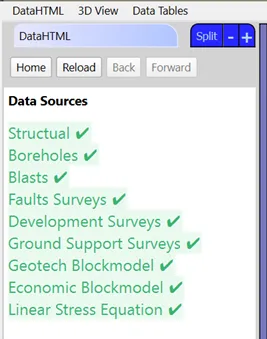
- Data source list: Shows which sources have data
- 3D View: Displays loaded data including development, faults, ground support, blasts, structures, and boreholes
- Data tables: Show geotechnical and economic block model information
A loaded data source may not represent the most recent data or provide complete mine coverage.
Per-Face Editors
Tools for editing parameters at the individual face level.
Use the Annotation tab in the 3D View to verify spacings.
Face Tag Editor
Modify the type tag of a stope face to correct errors or update information without reprocessing the entire stope.
Example use case: Changing a face tag from "rock" to "paste fill".
- Select a stope from the list
- Select the face to reassign and choose a replacement tag
- Click Save Face Tag
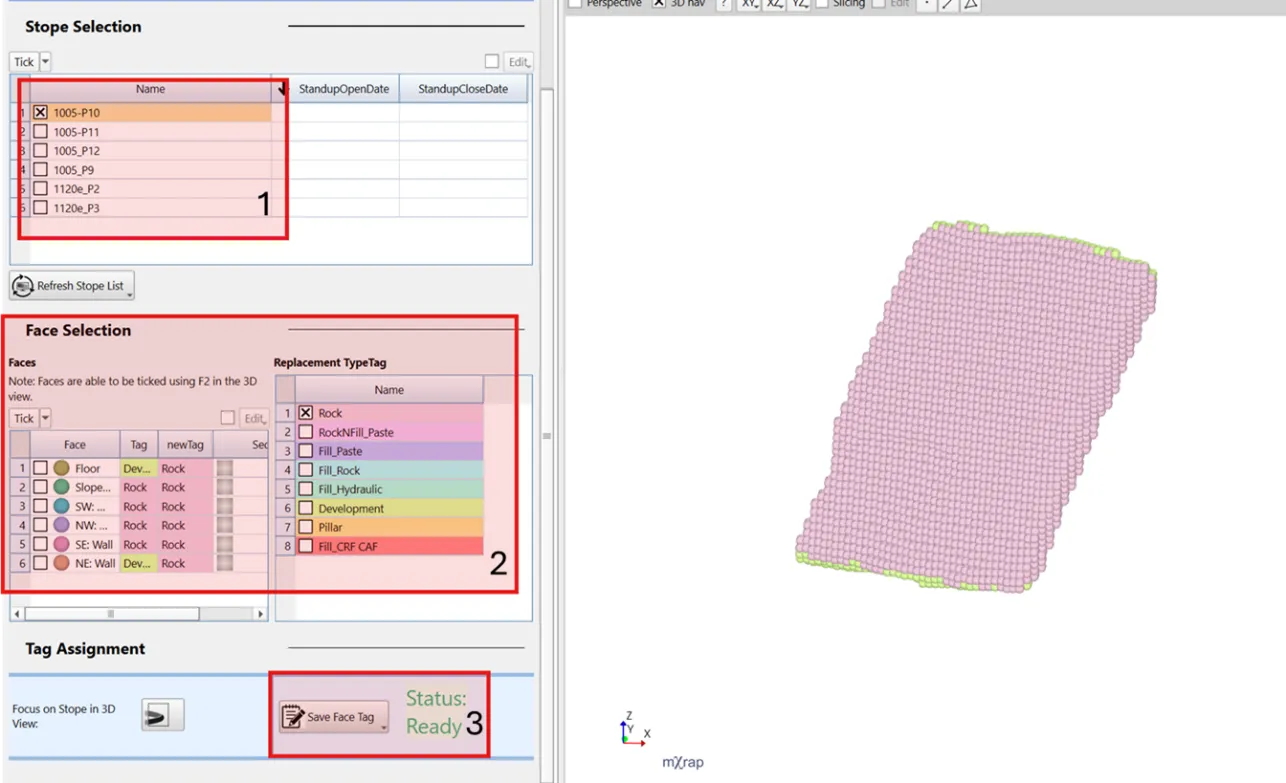
Focus on Stope in 3D View can help guide what a stope face should be assigned. If the stopes have standup dates when this stope was completed, its relation to surrounding stopes can be displayed (stope sequence 3D View series).
Ground Support
Quantify ground support per face using design strings (currently in development).
Parameters: Ring Spacing, Bolt Spacing, and Bolt Type are available for filtering and analysis in the Analysis window.
- Select a stope from the table
- Configure ring spacing, bolt spacing, bolt type, and face selection
- Click Push Ticked to assign tags to faces
- Click Save All when complete
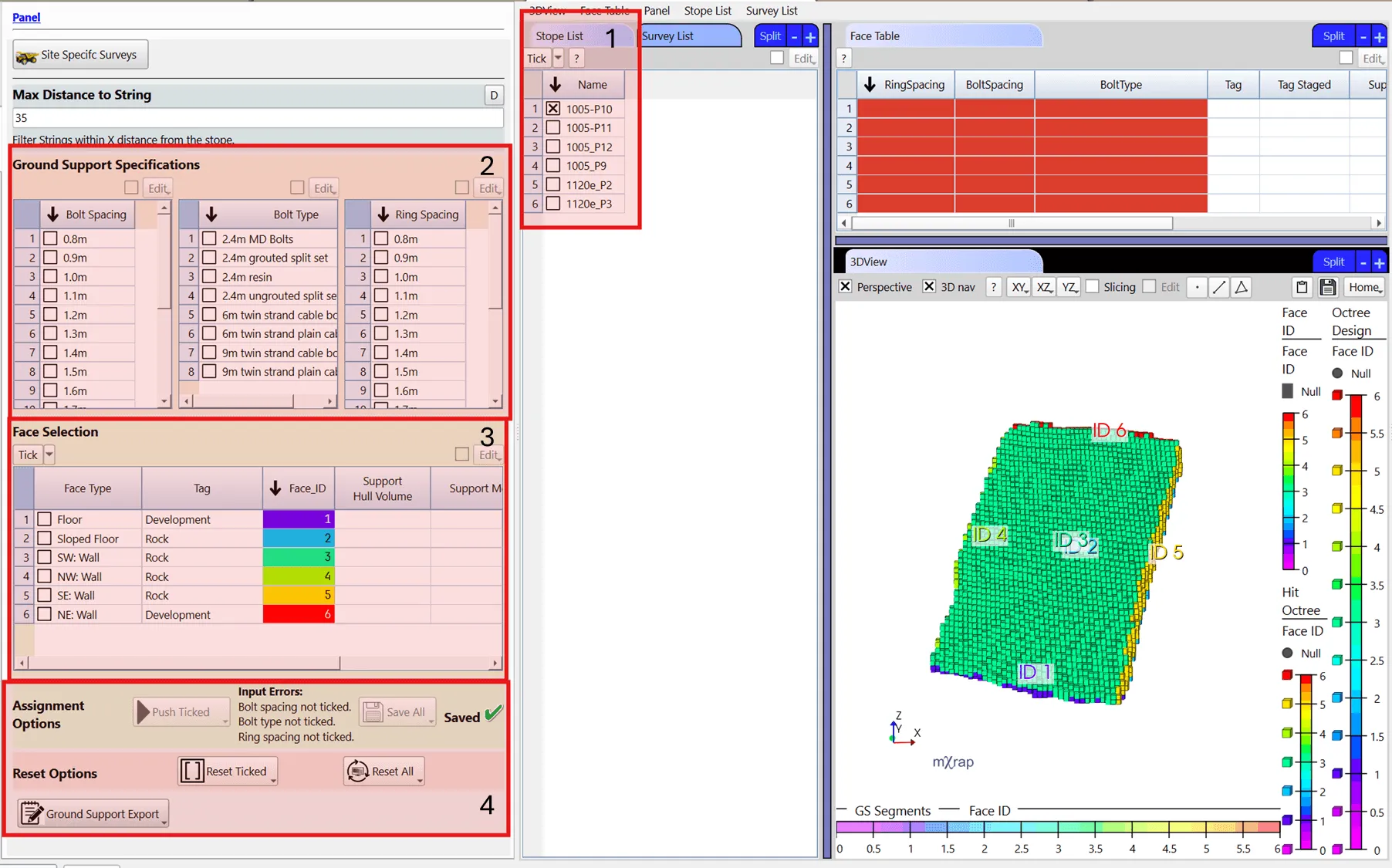
Tags can be assigned even when survey data is missing.
Geotechnical Information
Extract geotechnical data from block models or boreholes to calculate stability chart factors.
Data sources:
- Block model sampling
- Borehole sampling (face-specific or regional)
- Select a stope from the table
- Configure mapping variables (distances and association priority)
- Select critical joint sets for Stability Chart calculations
- Edit geotechnical values in the table:
- Enable Edit option
- Double-click cells to modify values
- Use copy/paste for multiple cells
- Recalculate parameters when prompted
- Click Geotech Export to save changes
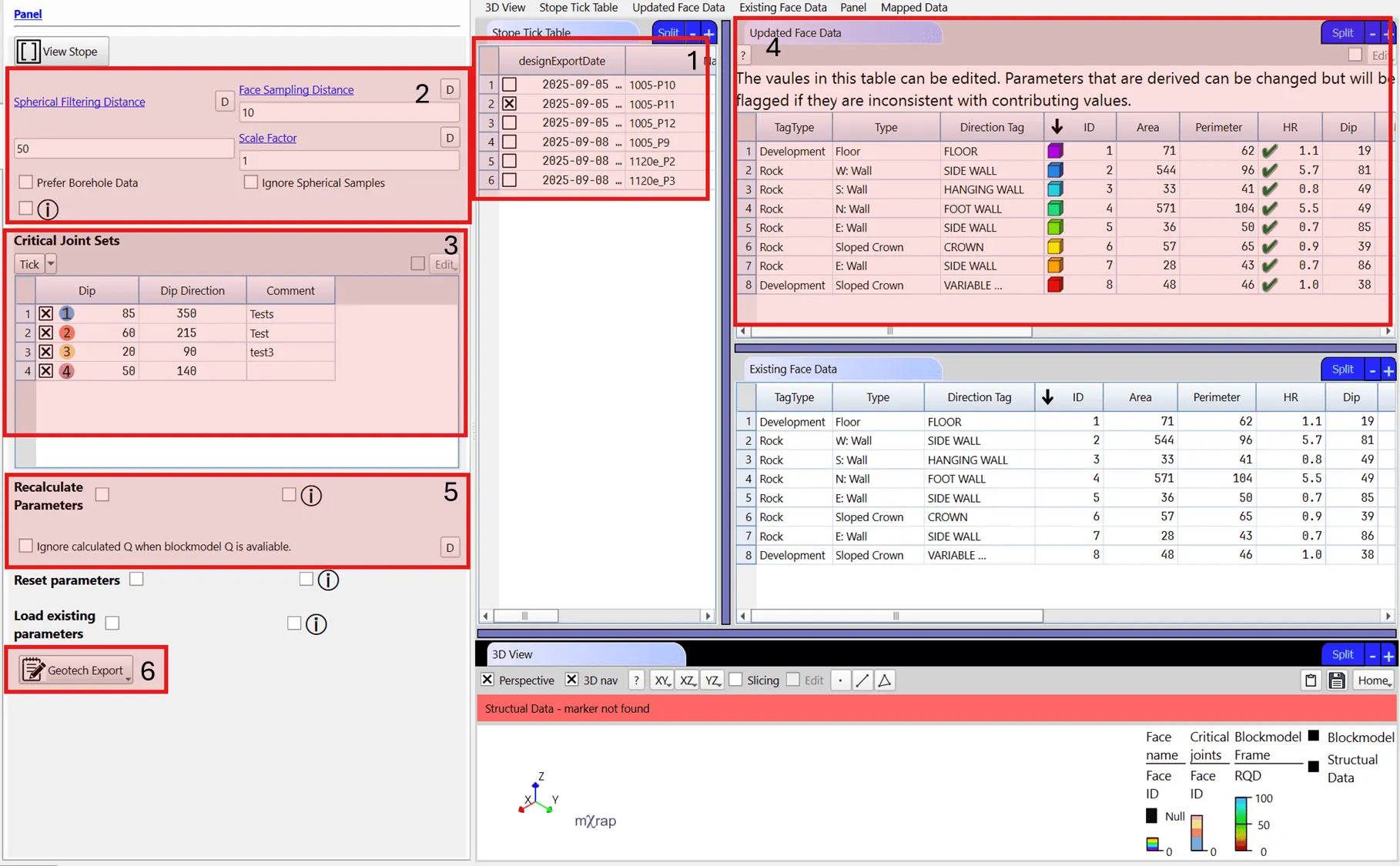
- Reset parameter columns to original mapped values
- Load existing table data instead of source data
Per-Stope Editors
Tools for editing stope-level parameters and assigning stope tags.
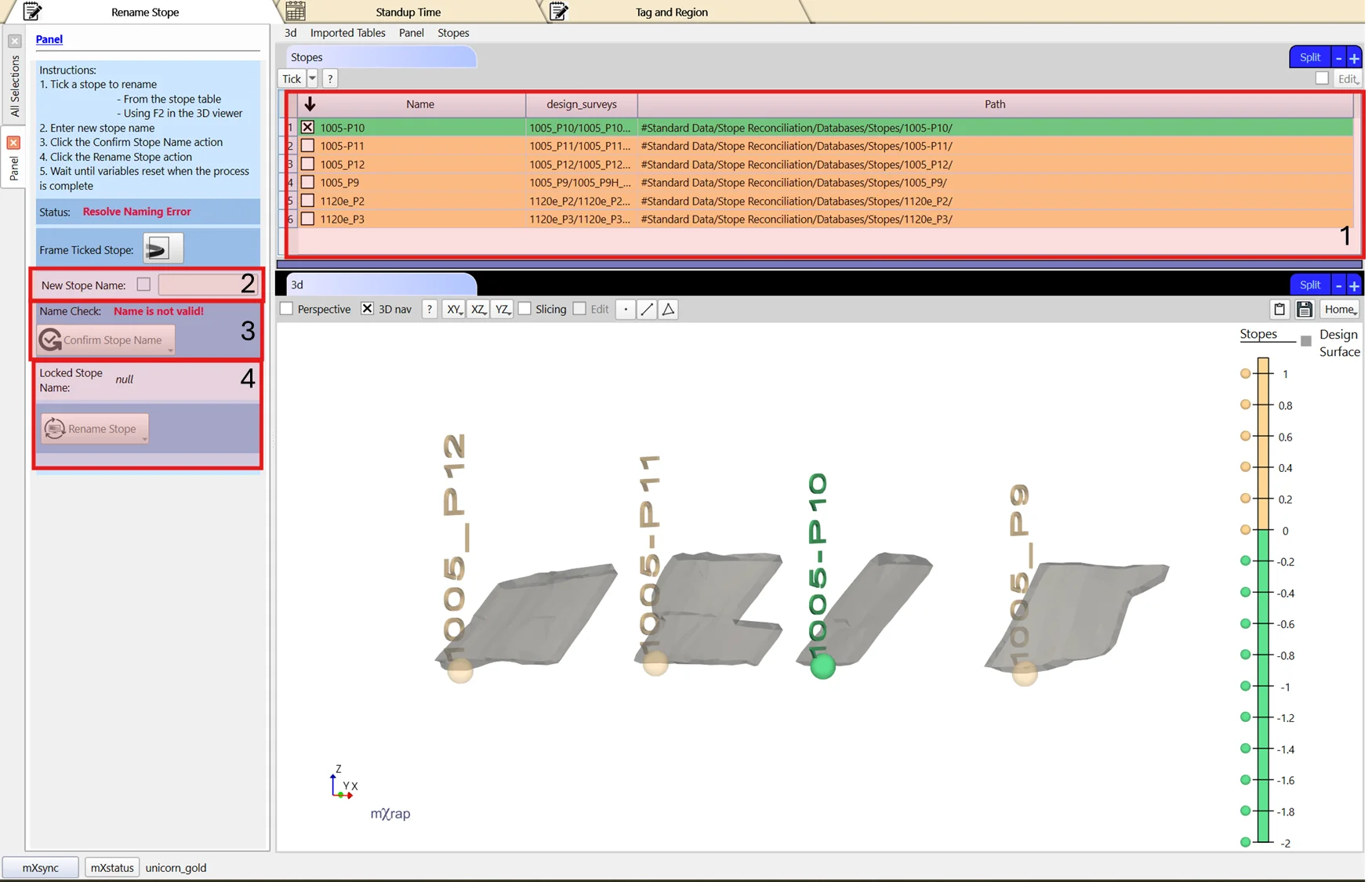
Rename Stope
Properly rename a stope across all database files and ensure folder name consistency.
Simply renaming the stope folder is insufficient as the name is stored within database files.
- Select a stope from the table
- Enter the new stope name
- Click Confirm Stope Name
- Click Rename Stope to update the database
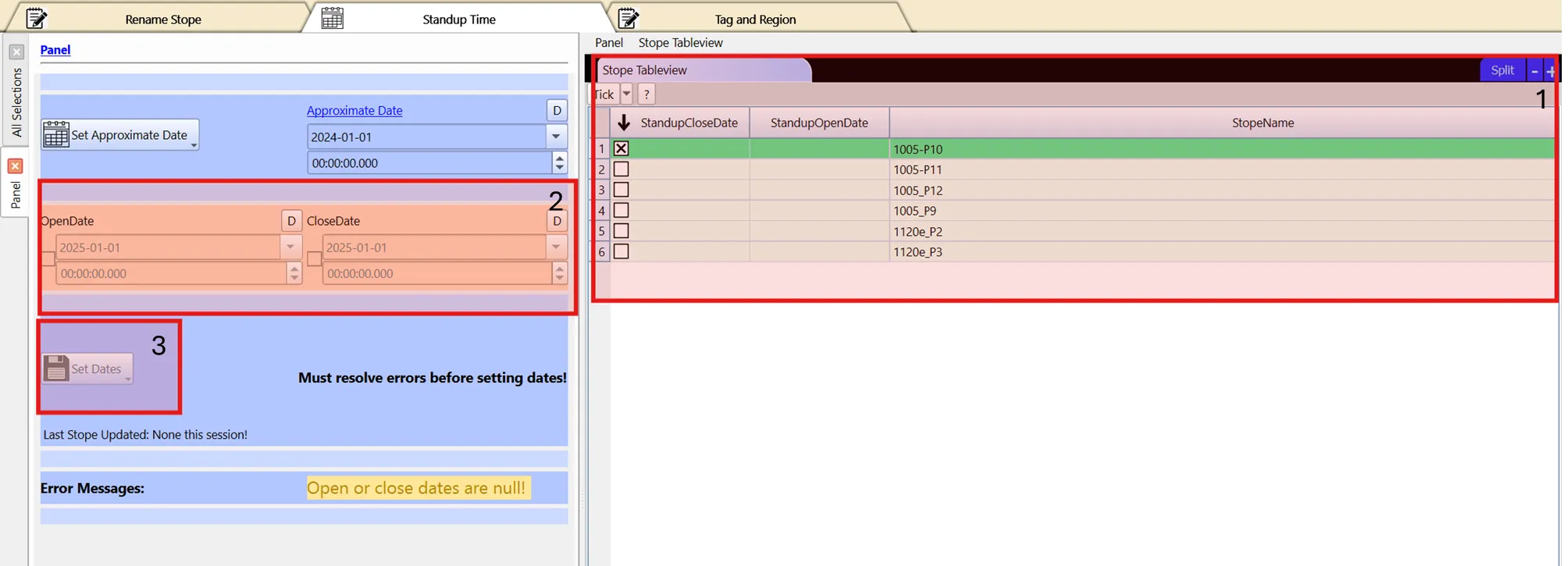
Standup Time
Edit standup dates for selected stopes.
- Select a stope from the table
- Set Open Date and Close Date
- Click Set Dates to update the database
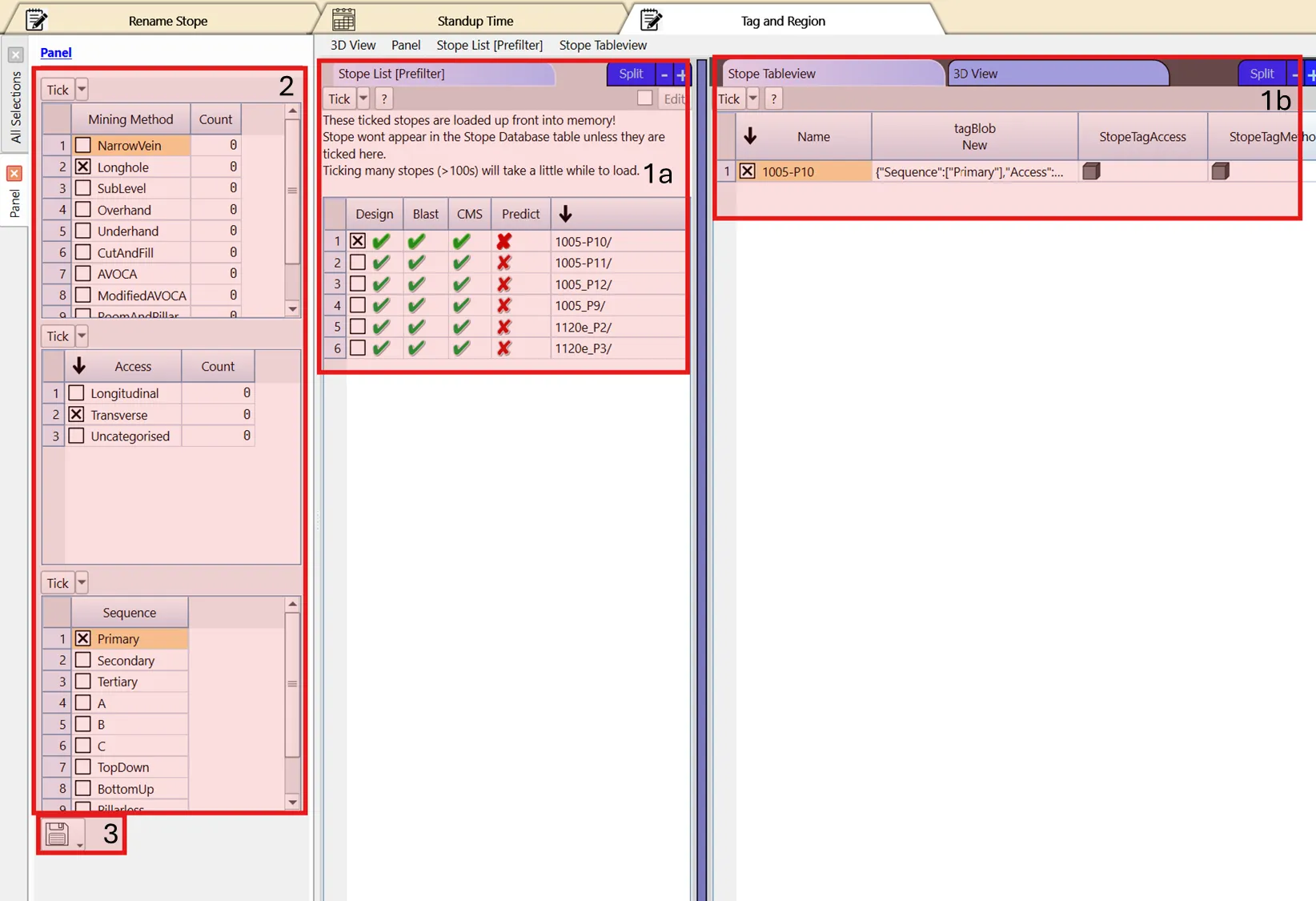
Tags and Regions
Assign mining method, access, and sequence tags to stopes. Region tags are automatically assigned from 3D View selection volumes.
- Select a stope from the table
- Configure mining method, access, and sequence tags (all required; use "uncategorised" if not applicable)
- Click Save Stope Tag to update the database
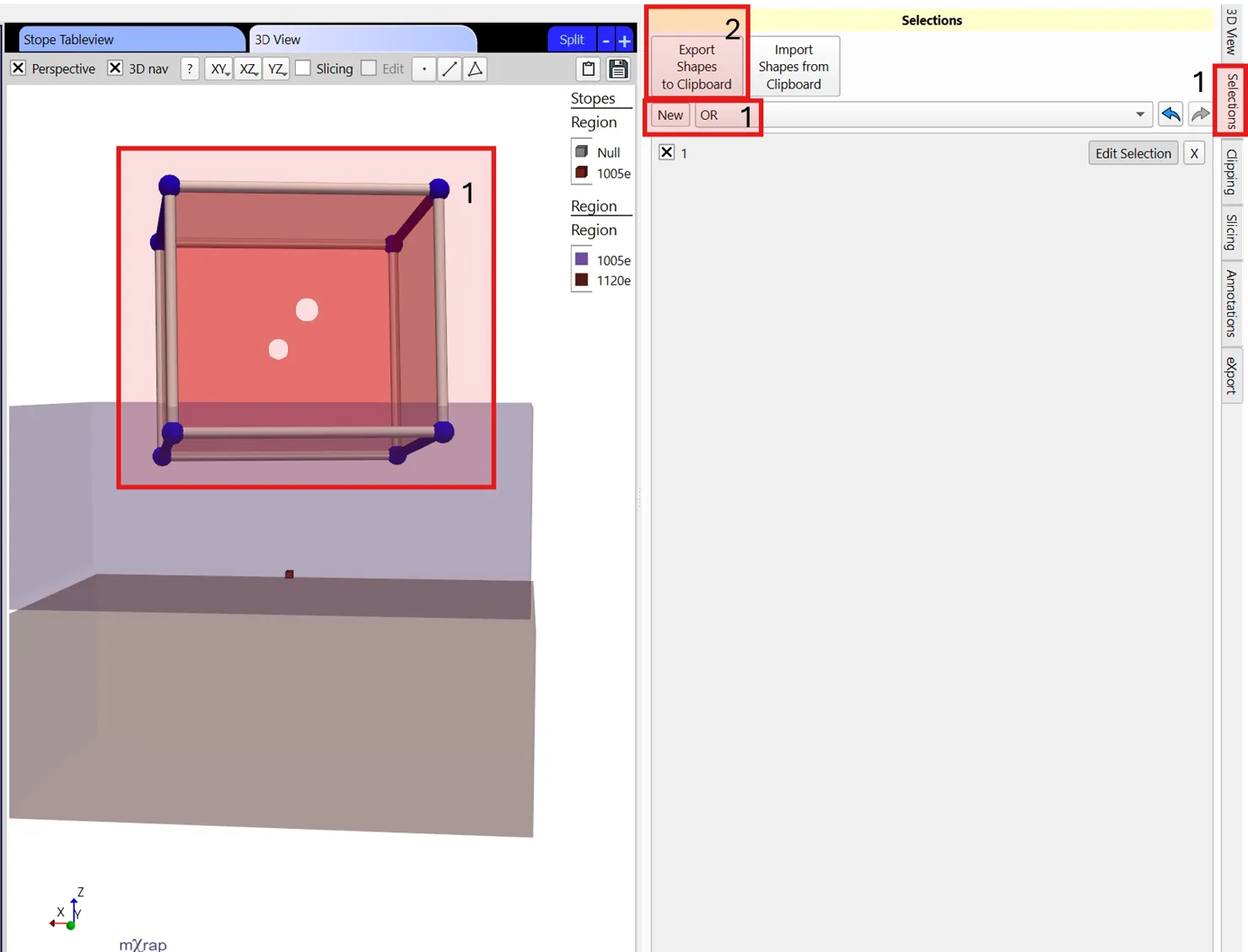
Configuring New Region Volumes
- Navigate to Selections Tab and create a selection covering the mining region
- Click Export Shapes to Clipboard
- Return to this panel and check the table checkbox (top right)
- Click Edit → Insert one row
- Enter region name in the Region column
- Paste the exported selection in the ShapeBlob column
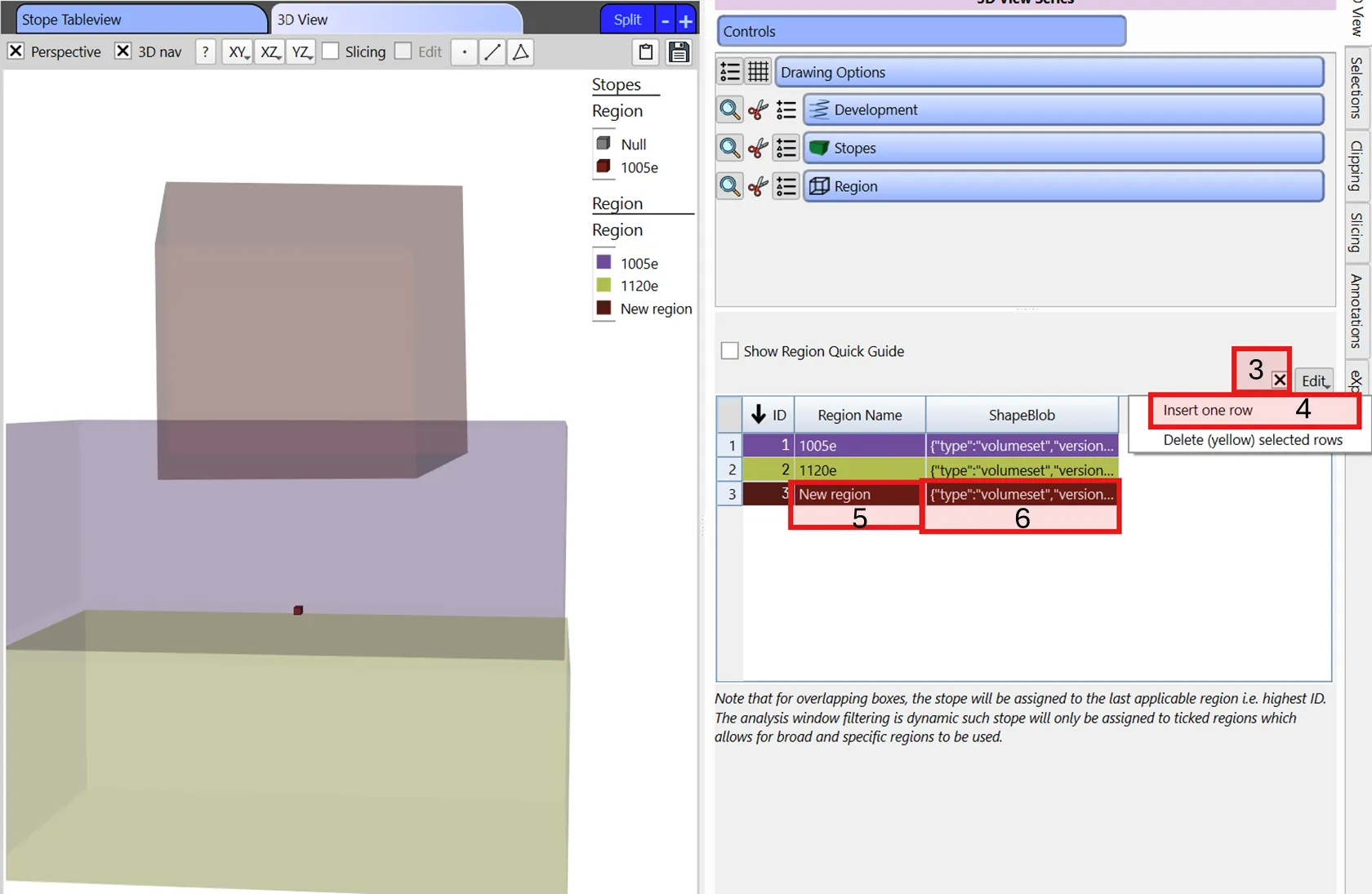
For overlapping regions, stopes are assigned to the highest ID region. The analysis window allows dynamic filtering by selected regions.
Survey Setup
Import mine-wide surveys for stope reconciliation analysis.
CMS/LiDAR scans can be significantly decimated without losing relevant detail.
Available Survey Tools
- Development surveys
- Fault surveys (load only performance-impacting faults)
- Ground support surveys (designed hole strings)
3D Visualisation
Displays all loaded surveys for verification and analysis.
.dtm, .str, and .dxf files often load with swapped XY coordinates. Check for outlying surveys by pressing R in the 3D View and swap XY columns in the input config tab if needed.