Photos
View or Link Photo(s)
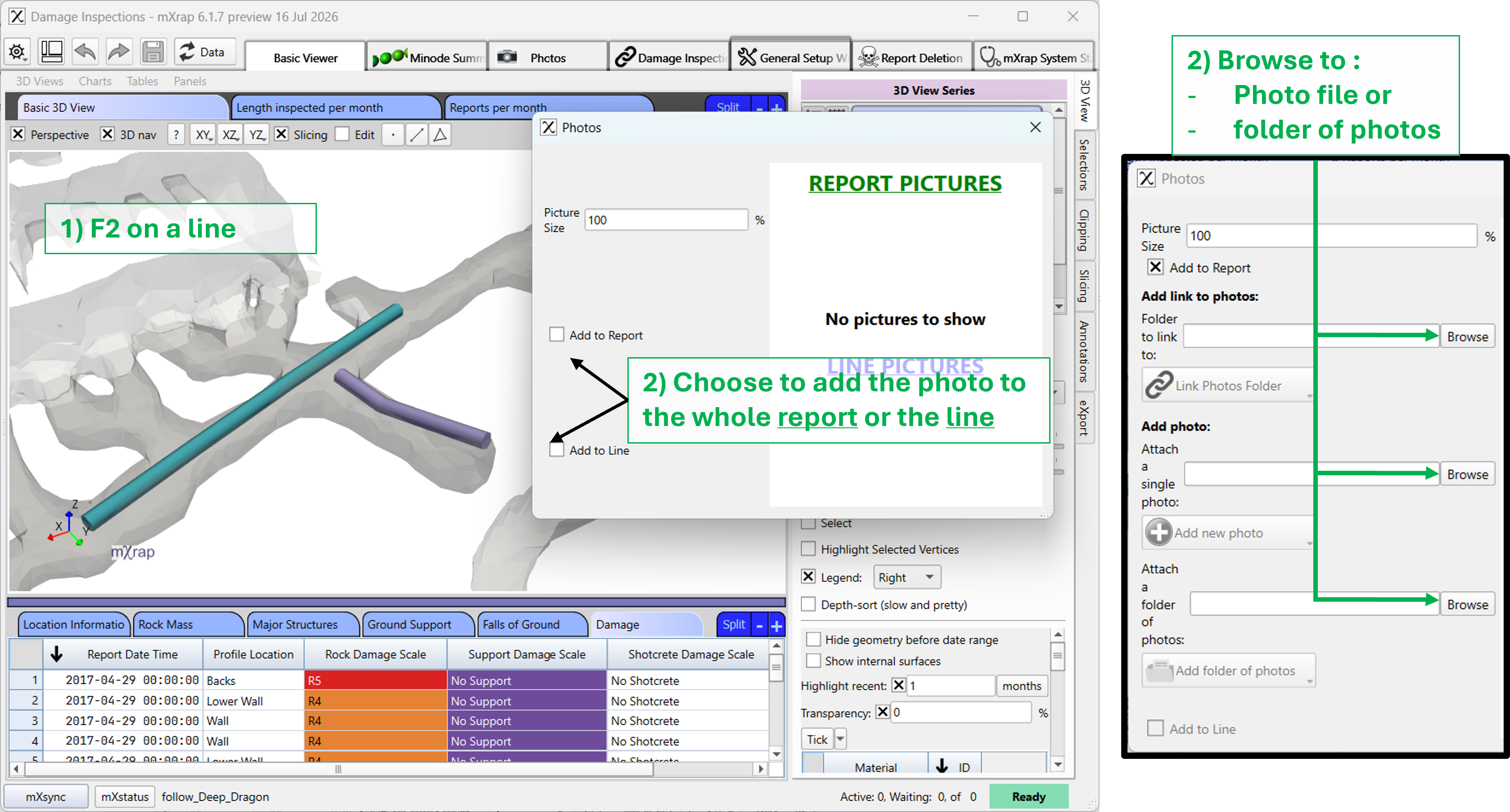
Photos can be attached and linked to a report / line / point for viewing in mXrap or in the webforms app.
There are multiple ways to do this in Inspections:
- Using the Window "Photos"
- In the Basic 3D view, pressing F2 on the segment on which you want to link a photo (Preferred method - More intuitive) -see video
For all inspection apps, you can do the following:
- Add photo(s) to the report/line/point - The photo will be stored in the root
- Add a folder of photos to the report/line/point - The photo will be stored in the root
- Add a link folder of photo(s) to the report/line/point - The photo(s) will NOT be stored in the root (Note: This will be broken if the photos moves)
nota
If you decide to store the photos in your root, it can get large very quickly, which will slow down every backup and updates. You can either decide to store a not high-resolution of the photos OR use the link option.
Video
The following is an example video of viewing, attaching and linking photos in the damage inspections app. This process is similar for the other inspection apps.
Procedure how to show or add a photo to a report or a line / point from the desktop mXrap Inspections app