Mine Geometry Models
This document will describe how to quickly create MGM steps for a collection of surveys, where the survey files have the mining date somewhere in their filename (or are organised into folders based on the mining date). This uses the MGM’s batch processing option to create several steps together.
For our example the surveys have the year and month in the survey filenames, as shown below.

First, ensure that the surveys are loaded into your survey cache using the Load Surveys for Steps window.
Next, go to the Build Steps -> Batch Generate Steps -> From Date Surveys window.

The overview window provides some information about the batch processing option. There are three different methods to associate mining dates with geometry: dates from a CSV, dates from survey names, and dates from blast locations. In this guide we will be using dates from survey names, so click on that window now.

You should now see the following screen.
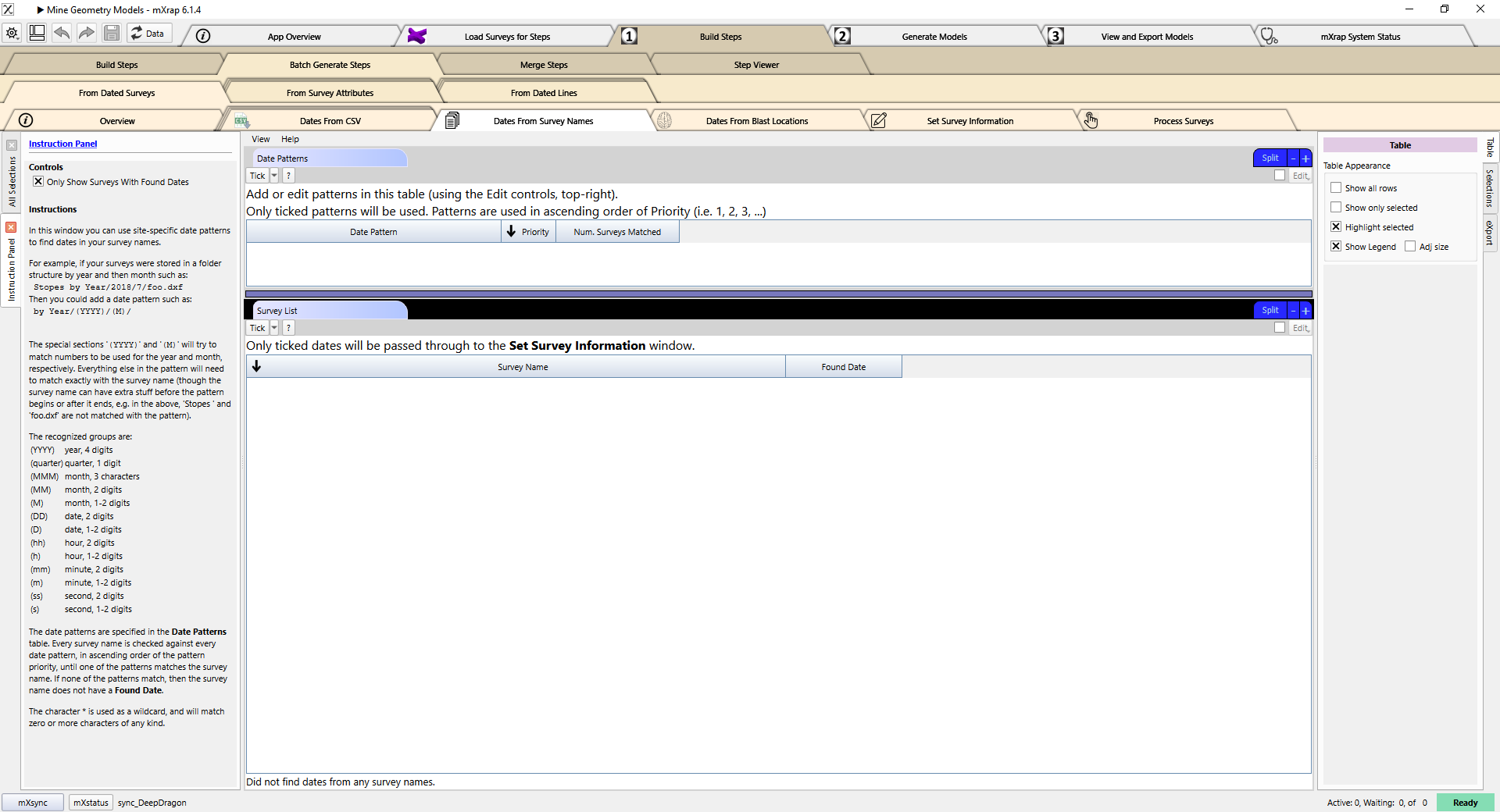
If you already see information in the tables, then this option has previously been used with your root folder. You can continue following along with the next steps, but you may find that some points have already been completed for you.
In this screen we have to specify patterns that tell the system how to read the mining dates from our survey file names. These patterns are entered into the Date Patterns table at the top of the screen. The control panel on the left of the screen has detailed information about the different options available in the patterns.

Tick the Edit option in the top-right of the table to enable editing. Then click and hold the Edit button, and select Insert one row from the drop-down menu.
You should now see an empty row in the table. Double click the empty cell in the Date Pattern column to begin editing the cell.
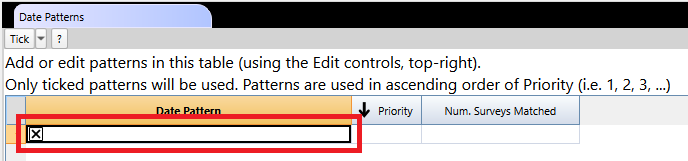
In our example surveys the mining date is written at the beginning of the filename with the year using four digits, then a dash, and then two digits for the month. The patterns use special placeholders to indicate where a component like the year or the month is found, in this case (YYYY) is the placeholder for a four-digit year, and (MM) is the placeholder for a two-digit month. We must include any other fixed parts of the filename that are between these components, in this case the dash. So our date pattern will be:
(YYYY)-(MM)
If your surveys are organised into folders, you can use a forward slash to indicate the folder structure. For example if you had folders for each year, and then folders for each month inside those, you could specify the pattern as:
(YYYY)/(MM)
After you have entered your date pattern (ensure that you press the enter key when you have finished typing), you should see a list of surveys with matched dates in the bottom table.
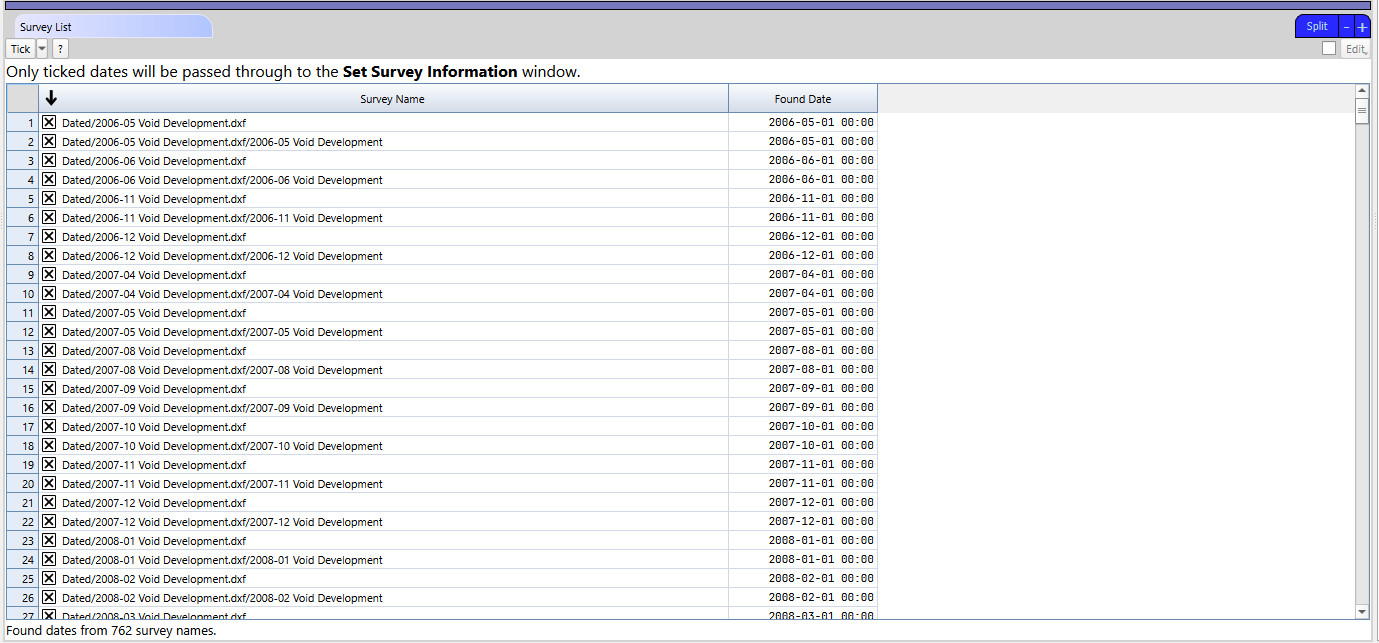
The Found Date column shows the mining date as it has been interpreted by the system. You can use this to verify that your date pattern is working correctly.
If you want to check the names of all your surveys, for example to check for surveys which are not matching the date patterns, then you can untick the Only Show Surveys With Found Dates option in the control panel.
If there are any dates which are invalid or that you do not want to include, you can untick the survey file in this table to remove it from the final list of dates.
If you have different kinds of date patterns used in different surveys, you can enter multiple rows in the Date Patterns table to specify each different kind of date pattern.
When you have dates for all of the surveys that you want to use, continue by clicking on the Set Survey Information window.
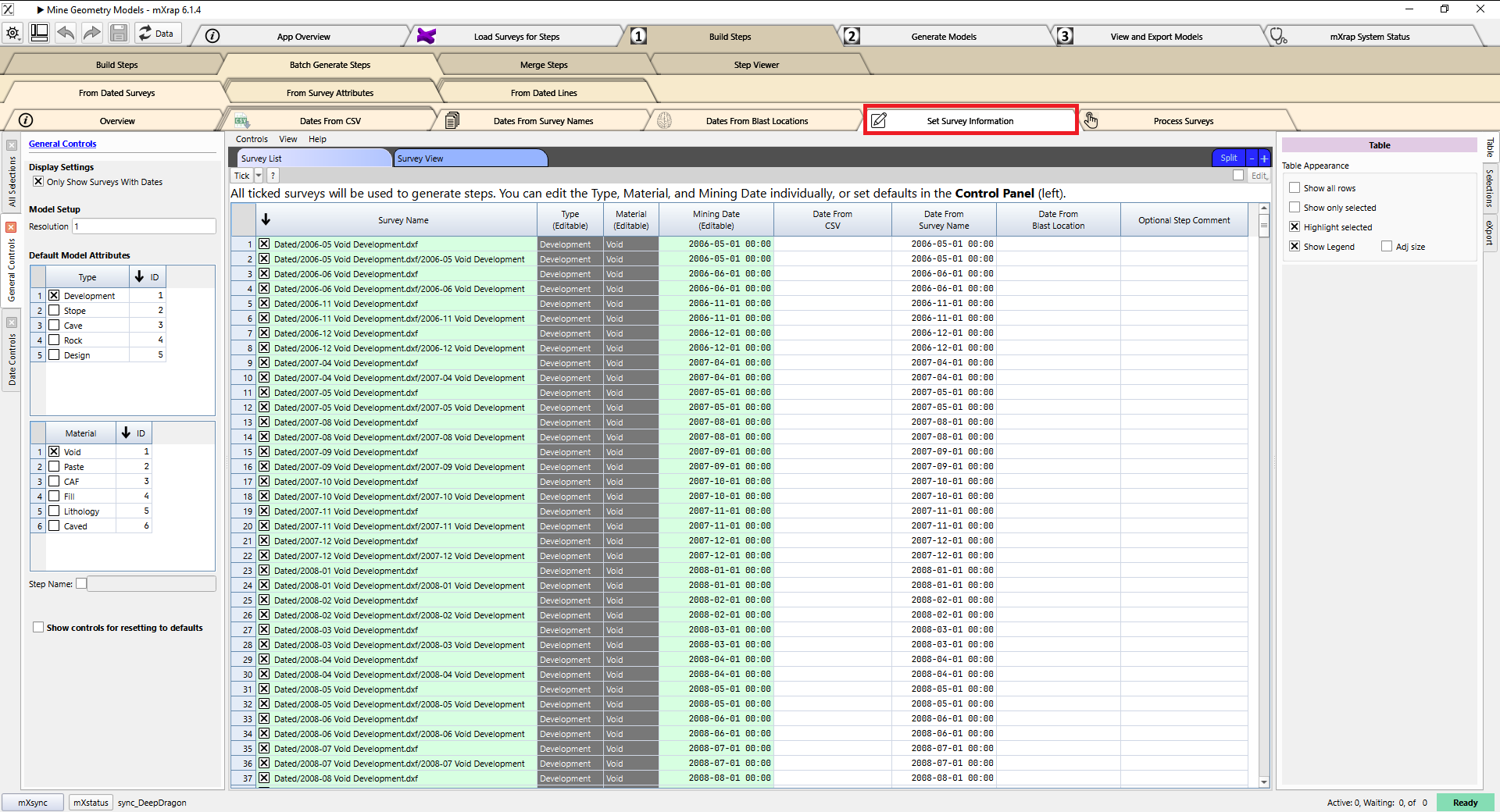
In this window you will see all the survey files that have any mining dates associated with them. As we mentioned previously, there is another option that associates mining dates based on blast locations. This option is enabled automatically, but we do not want to use it. Click on the Date Controls panel on the left, and then untick the From Blast Locations option in the table in the panel:
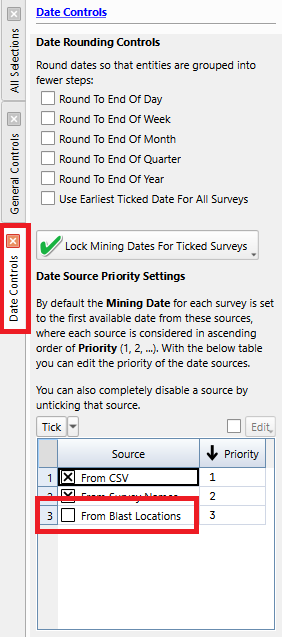
In this panel you also have the option to round dates to the end of certain periods, e.g. to the end of the month or to the end of a quarter. In our example we are happy using our monthly dates, so we will not use the rounding options.
Click on the General Controls panel on the left. In this panel you can set the step resolution, the default step type, the default material type, and a step name/comment that will be applied to all of the steps. Setting the step name is highly recommended as it will make it easier to manage your step library in the future.
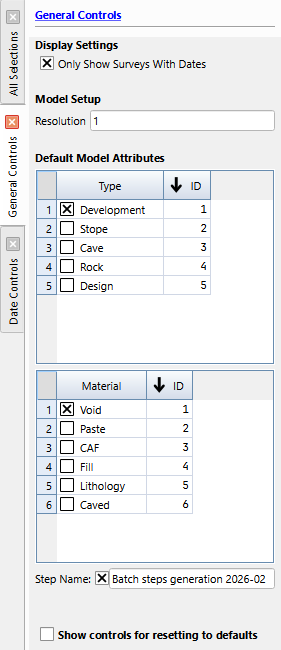
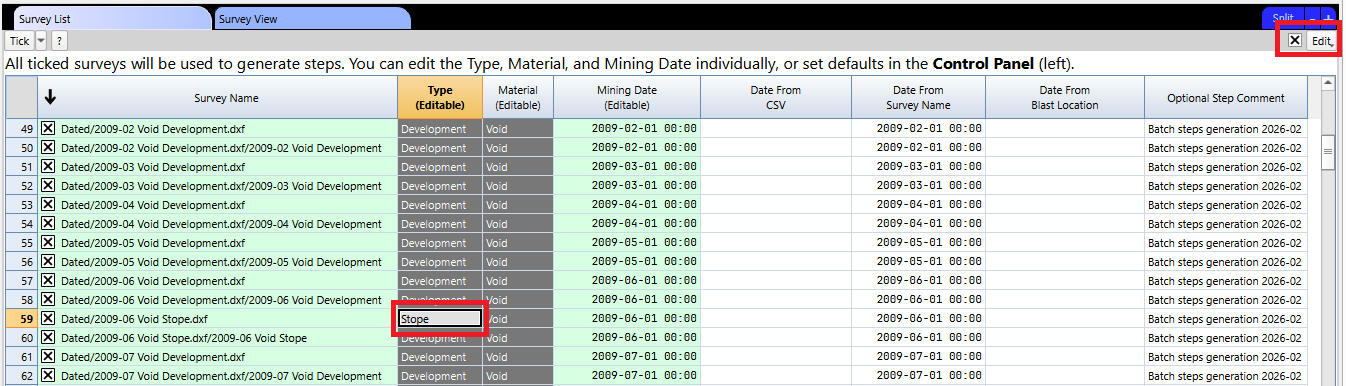
In our example we have a mix of development surveys and stope surveys. We could process these separately to ensure that the types are correct, or we can edit the types for certain surveys in the Type column in the table.
To edit the type, ensure the Edit option is ticked in the top right of the table, and then double click the cell and enter the new type value. You can also copy and paste values in the cells using Control+C and Control+V, which is useful if you have multiple surveys to modify.
When all of your survey information is correct, click on the Process Surveys window to continue.
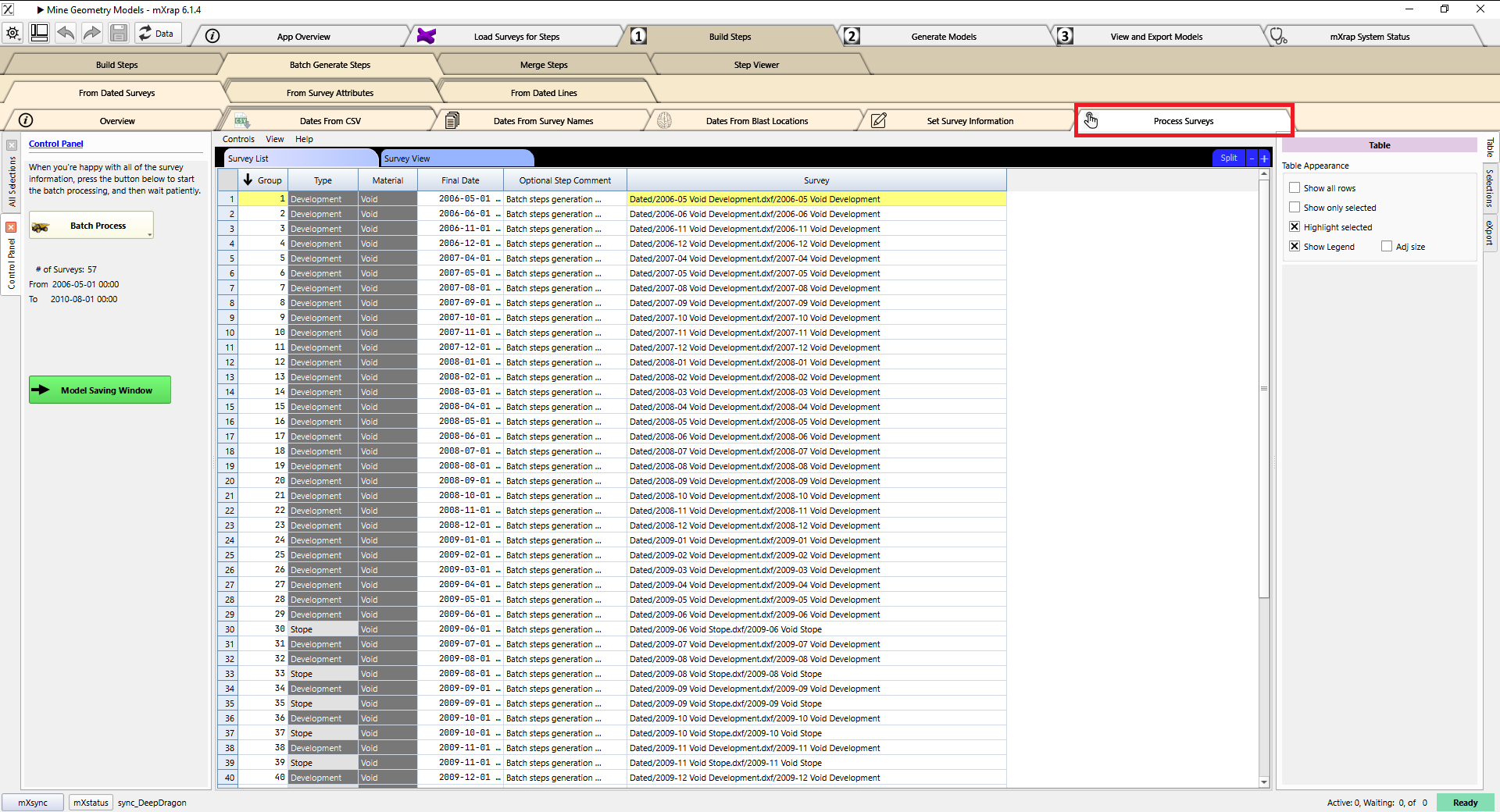
Click the Batch Process button in the control panel on the left to begin the processing.
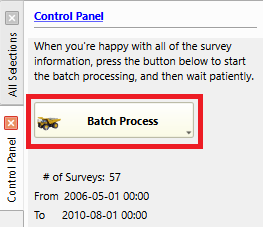
Now it’s time to leave the MGM app alone while it works. The table will show completed surveys in green, and the current survey that it is processing in yellow. You can let it run in the background while you use other mXrap apps or other programs. When it is finished, you should be able to see all of your new steps in the Step Viewer window.