IT guide to mXrap
Deployment Overview
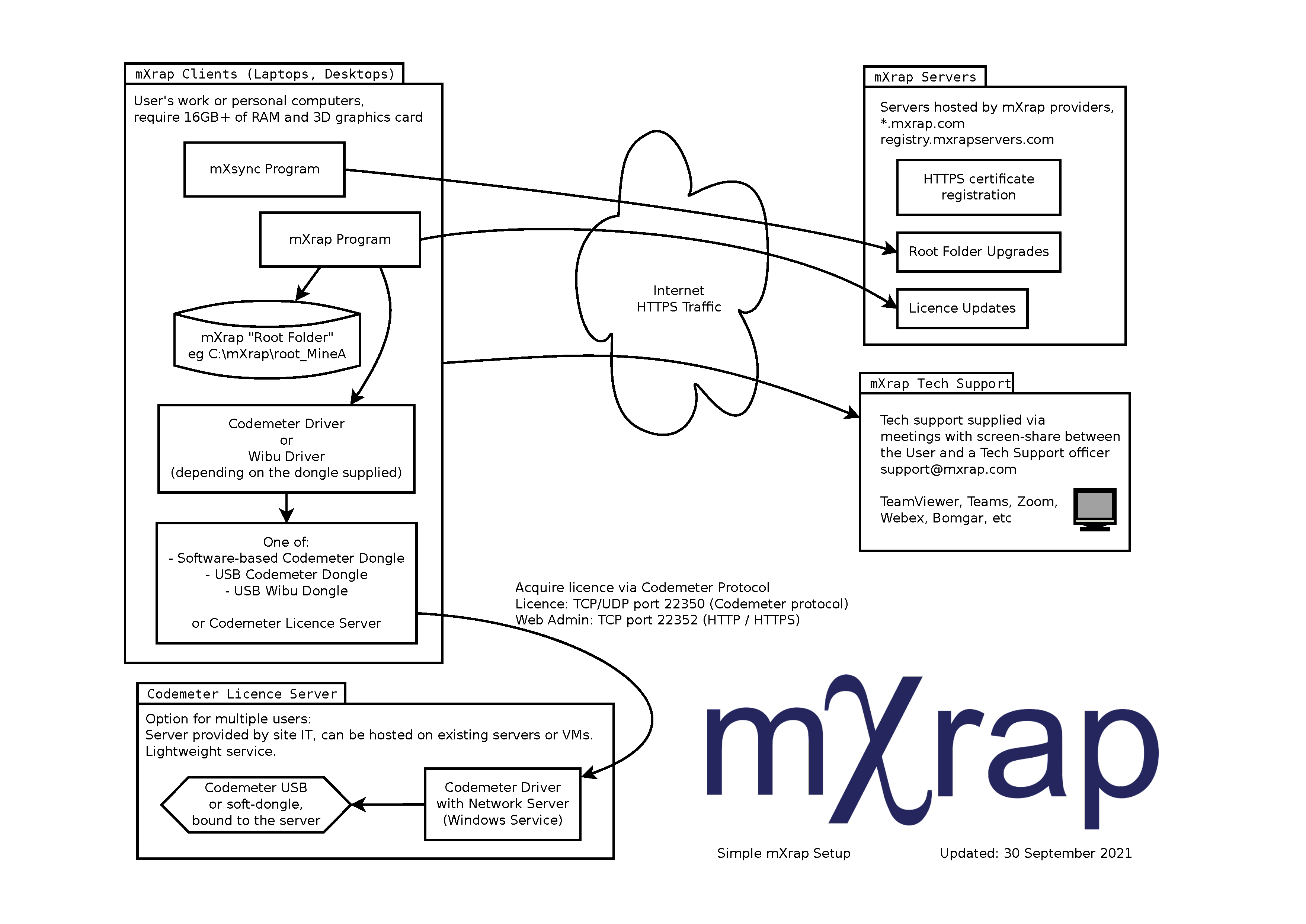
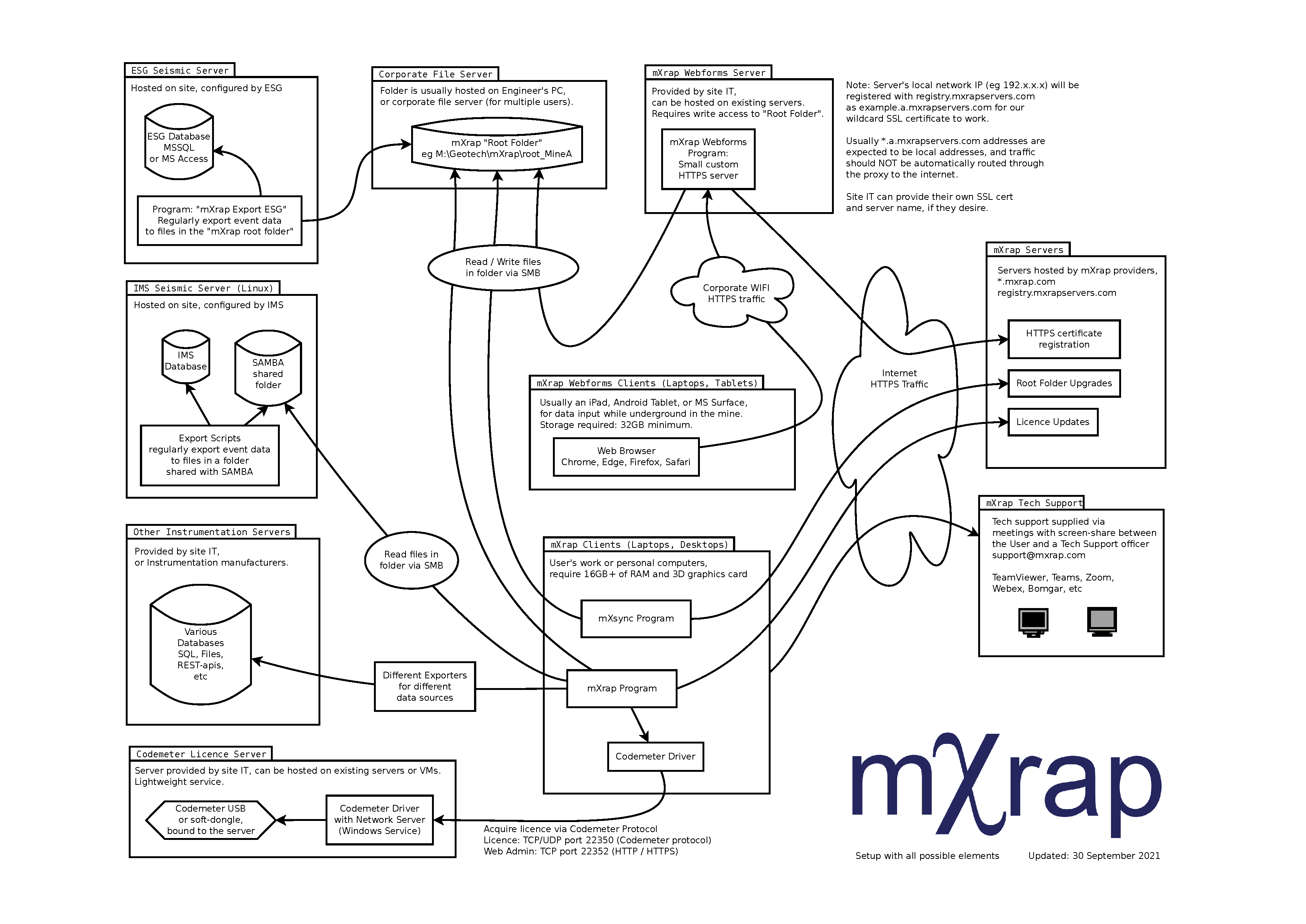
Note that your setup may not include some of the servers in this diagram.
- Consultants and Researchers will not have Seismic or Instrumentation servers.
- The CodeMeter Licence Server is not required for Wibu users.
- The CodeMeter Licence Server is not required if a physical CodeMeter dongle is plugged into the user's computer directly.
- Webforms servers and clients are only required for sites using the Damage Mapping system.
- A Corporate File Server is not required if the user stores the data locally on their computer.
- Simple Deployment
- Full Deployment
mXrap Servers
Licence hosting
Server requirements
- The licence server can be any machine that is accessible by mXrap user PCs through the network.
- The CodeMeter driver needs to be installed and configured to act as a Network Server.
- If you are using a physical dongle the CodeMeter key must be plugged into the server.
- The CodeMeter server can be a virtual server. The USB dongle can be accessed by the server via products such as AnywhereUSB.
- Note that ONLY the one server should access the dongle via AnywhereUSB. Do NOT set up the system so the clients access the dongle via AnywhereUSB.
The CodeMeter dongle is not designed to operate that way, and we have seen problems when used like this. - If you are using a Software-based dongle it will need to be installed on the licence server.
- Note, once the Software-based dongle has been installed on a device it cannot be transferred.
Licence server setup
- Install CodeMeter Runtime
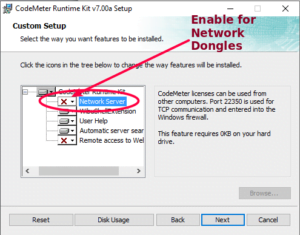
- Configure the CodeMeter as a network key, as follows:
- Open the 'CodeMeter Control' program and press the 'WebAdmin' button
- In the displayed webpage, browse to: Configuration -> Server
- Turn on the 'Network Server' and hit Apply
Licence client setup
- Install CodeMeter runtime (local admin privileges required).
- In "About mXrap" set the server address in Licence Servers > Manual Set
- Alternatively, put a
.txtfile containing the server address in a location accessible to all users (such as within the root) and set the file as the one for checking common server settings. This allows for bulk updating of server addresses.
- Alternatively, put a
Data hosting
There are no services for data. All data is stored in one folder on any network drive which is accessible to all mXrap users.
mXrap Clients
This guide covers the complete process for deploying mXrap on client machines.
Prerequisites
System Requirements
Operating System
- Windows 10/11 64-bit
- Long Paths must be enabled
Hardware
- RAM: 16GB minimum
- Processor: x86-64 (Intel or AMD) - ARM devices not supported
- Graphics:
- OpenGL 4.0+ compatible graphics card
- Updated graphics drivers
- Discrete GPU or APU recommended (integrated Intel graphics may cause issues)
Access Requirements
Shared data storage
The user must have write access to the 'root folder' where mXrap data is stored. Common locations for the root folder are:
- Local disk drive (single-user installations)
- Corporate network folder (single/multi-user installations)
- Shared folder on another engineer's computer (multi-user installations)
- Shared folder on ESG server (when ESG server cannot access corporate network)
Seismic data sources
- IMS Seismic Data: Read access to IMS network drive for
.msrap*evpfiles - ESG Seismic Data: Access to root folder (data exported directly by ESG server)
Installation Process
Software Installation
-
Head to Downloads and download the necessary installers. You will need mXrap and CodeMeterRuntime to start using mXrap. The username and password to access the downloads will have been sent to you during setup - email if you don't have them.
-
Install CodeMeterRuntime.exe. This small application will allow your PC to communicate with the mXrap licence servers. The installation options should be left as default.
This step requires local admin access.
- Install mXrap with the default installation options. This does not require admin privileges and installs to
%localappdata%. This will install 3 new applications, which can be found in the Start Menu.
- mXrap
- About mXrap
- mXsync
Installation Options
- Default: Per-user installation
- All-users: Run
msiexec /i mXrap_installer.msi ALLUSERS=1from an elevated command prompt - Enterprise: MSI supports group policy deployment
Licence Server Configuration
Prerequisites
- Ensure licence server is configured (see IT Installation Guide)
- Install CodeMeter Runtime
Setup Process
Open About mXrap and click on Licence Servers.
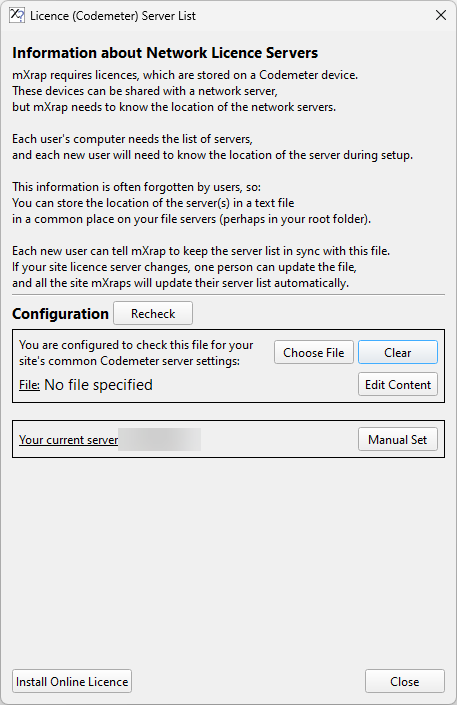
- CodeMeter WebAdmin: Access the
Wibu CodeMeter WebAdmin interface - Check Licences: Force the runtime to refresh licence status
Configure your network licence server connection using the following options:
| Action | Description |
|---|---|
| Choose File | Select a plain text file containing server addresses (IP, hostname, or URL) - one per line |
| Clear | Remove file reference (file remains on disk) |
| Edit Content | Open the selected file in your default text editor |
Example server configuration file:
555.555.5.555
server.company.com
hostname
| Action | Description |
|---|---|
| Manual Set | Directly enter your network licence server IP/URL/hostname |
| Install Online Licence | Configure online licensing - see Online Licence Setup |
| Close | Close the configuration window |
Post-Installation
Verification Steps
- mXrap launches successfully
- Licence is valid and up-to-date
- Data sources are accessible
- Graphics rendering works correctly
Support
Remote assistance is available for:
- Data gathering and restructuring
- System configuration audit
- Troubleshooting installation issues
You can also email at any time for assistance.
Support requirements
We are asking (within reason) that IT allow us to connect to engineer's computers via Microsoft Teams or TeamViewer for support purposes. Remote access is only needed 'on demand', which means we have no access unless the engineer explicitly gives us access. You can use the mXrap QuickSupport version, which only allows connections while it is running and the engineer is there. This software is not installed on the machine.
Please note that RDP is not an alternative as the engineer is not able to see the screen. It is therefore not useful for training and does not facilitate troubleshooting where the engineer's input is required.