Long Paths and Root Mapping
There is an old restriction from the 1990s in the Microsoft Windows OS that limits the maximum file path to 260 characters. This limit is too low in modern work environments, and users can easily reach this limit.
Example of a root folder that can hit the limit: M:17\_Underground Mining173\_Geotech111\_Data5.4\_GeotechnicalSeismicitymXraproot\_minesite
The start of the path uses 90 out of the 260 limit, leaving only 170 characters for folders and files inside the data folder.
Please note that this issue is not mXrap specific so you may experience other programs having issues with this too - including with Windows Explorer.
If you want to read more about long file paths, you can do so here:
https://learn.microsoft.com/en-us/windows/win32/fileio/maximum-file-path-limitation
How do I know if I'm affected
- You will not be able to open, rename or delete files with MS File Explorer.
- mXrap and mXsync will have trouble reading and writing files, resulting in:
- mXsync continuously rescanning the same files
- mXrap is blocked and the System Health Menu mentions 'Long Paths', 'Can't scan file' or 'Error while reading file'
- mXrap error console or popup appears and mentions 'Long Paths', 'Can't scan file' or 'Error while reading file'

How do I enable long paths
You can enable long paths by updating the window registry on your device. This will require administrator permissions so please contact your IT department as required.
Via Windows Registry Editor
-
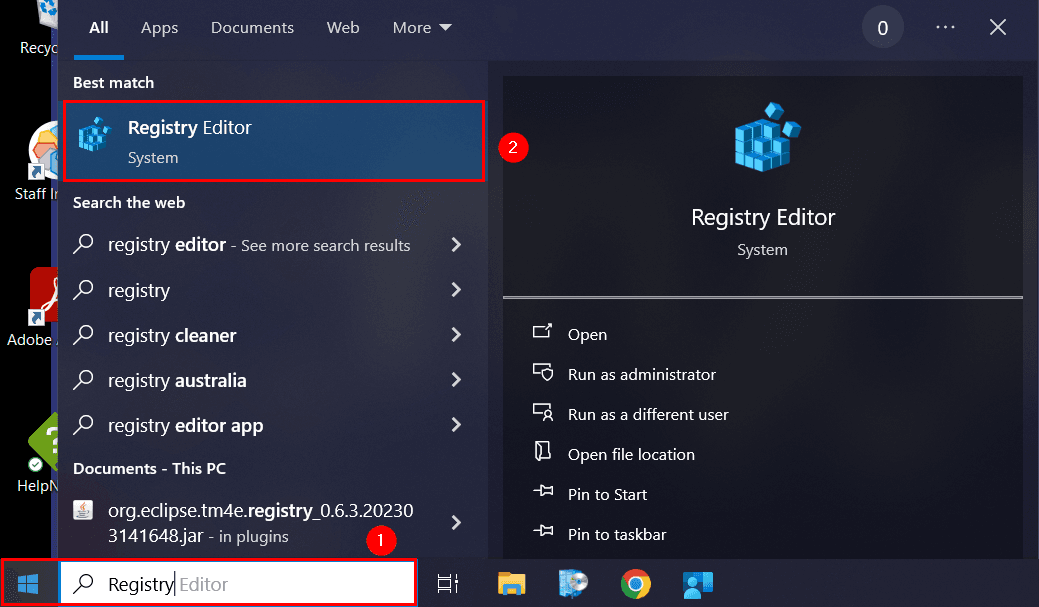
Navigate to the Start Menu or Search bar on the bottom left and type 'Registry Editor'
-
Click on the 'Registry Editor' program
Update_LongPath_Registry -
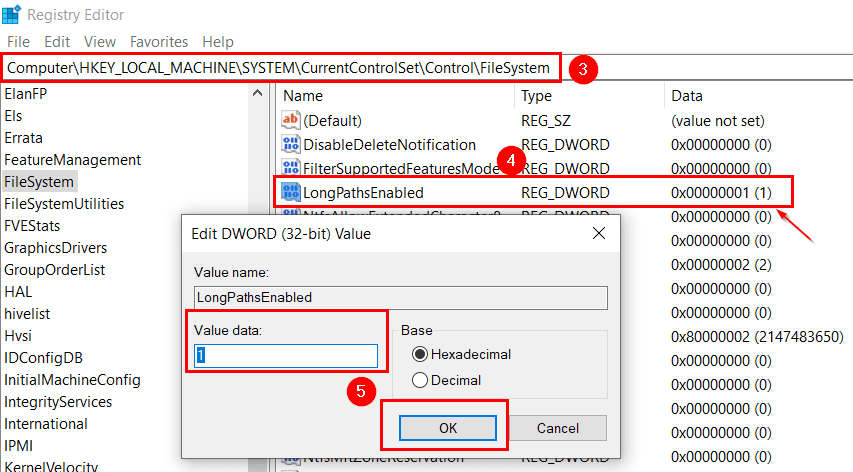
Navigate to
Computer\HKEY_LOCAL_MACHINE\SYSTEM\CurrentControlSet\Control\FileSystem -
Check if
LongPathEnabledis set to1. If not, double click the Name (ie.LongPathsEnabled) -
Edit the Value data to be
1and click 'OK' -
Restart mXrap and check if you are still having issues
Via PowerShell
-
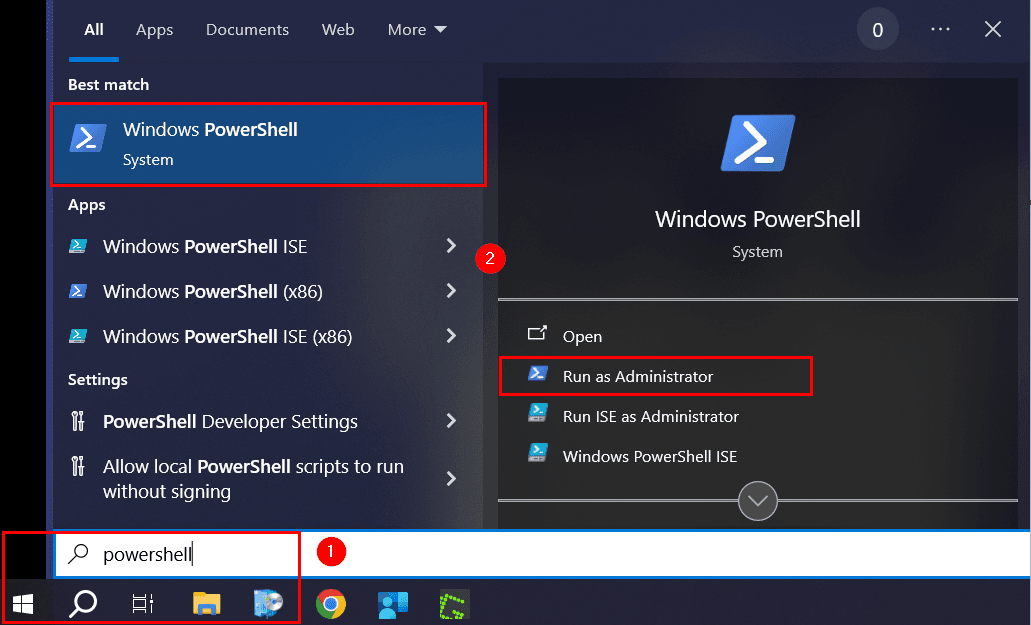
Navigate to the Start Menu or Search bar on the bottom left and type 'PowerShell'
-
Right-click and 'Run as Administrator'

Update_LongPath_Via_PowerShell -
Copy and paste the following text in PowerShell and hit enter on the keyboard:
New-ItemProperty -Path "HKLM:\SYSTEM\CurrentControlSet\Control\FileSystem" -Name "LongPathsEnabled" -Value 1 -PropertyType DWORD -Force
- Restart mXrap and check if you are still having issues.
You do not have to reboot your computer, as each program checks the flag when it starts. A reboot may be required to make Windows Explorer work properly, depending on your settings.
Temporary workaround
If you have requested IT to enable long paths, it is best to wait for them. If you urgently need to look at your root, you can map the folder containing your root folder to a drive. You can do so by following the instructions below:
-
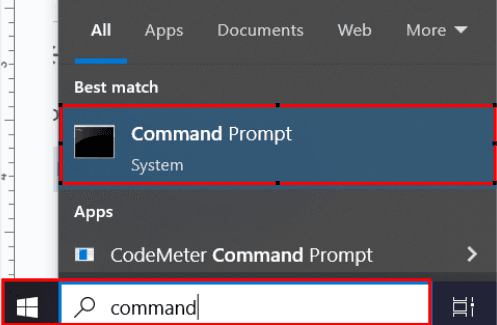
Navigate to the Start Menu and search for and open 'Command Prompt'
Open_Command_Prompt -
In Command Prompt, copy and paste the following text:
net use x: root_folder_parent /PERSISTENT:YES
Notes:
-
Please substitute the text
root_folder_parentto be the path to the folder containing your root folder like the example below. -
The
root_folder_parentmust be a folder on a network drive.- If you have an issue with the root on local disk, we would recommend moving the root so it will have a shorter path.
-
Please ensure the X: drive is currently unused on the computer before proceeding, otherwise you can use another letter that is currently unused.
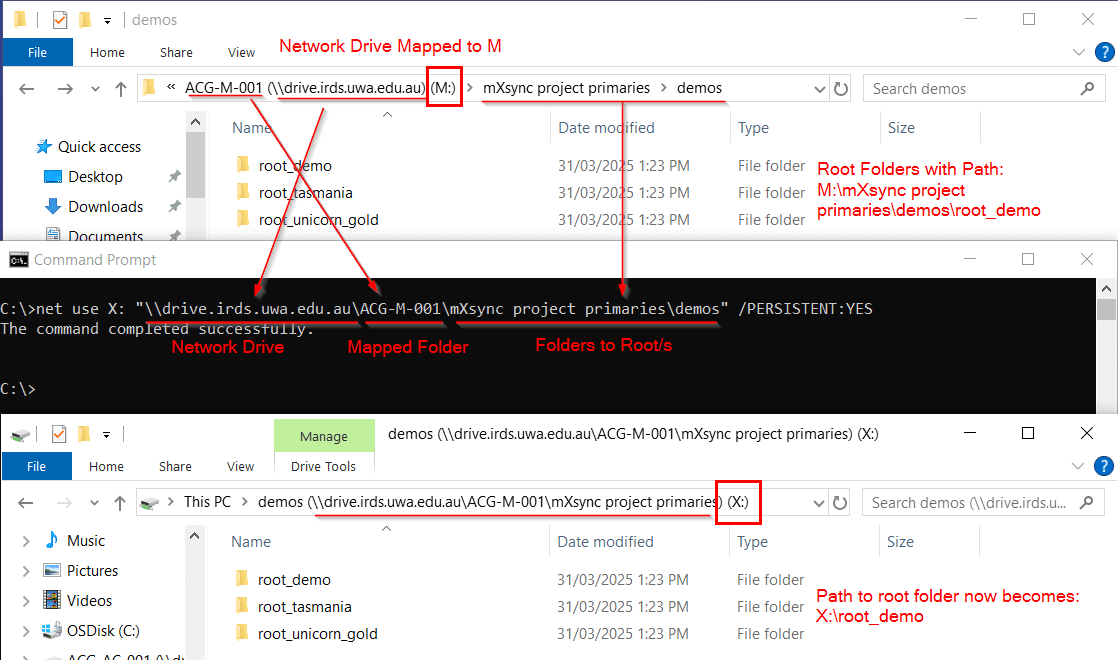
Map_Drive
- Hit 'Enter'
After mapping the drive, we will need to update mXrap to use that path instead of the original full path:
-
Open mXrap
-
If you have opened the root folder in mXrap before;
-
Select the root folder

Select_Root_mXrap -
Select
Switch>Forget this Root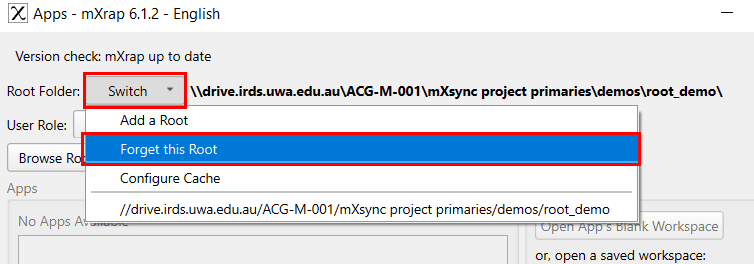
Forget_Selected_Root_mXrap
-
-
Select
Switch>Add a Root
Make sure to select your root via the new mapped drive (X:). Don't use the old path as it will trigger the problems with Long Paths.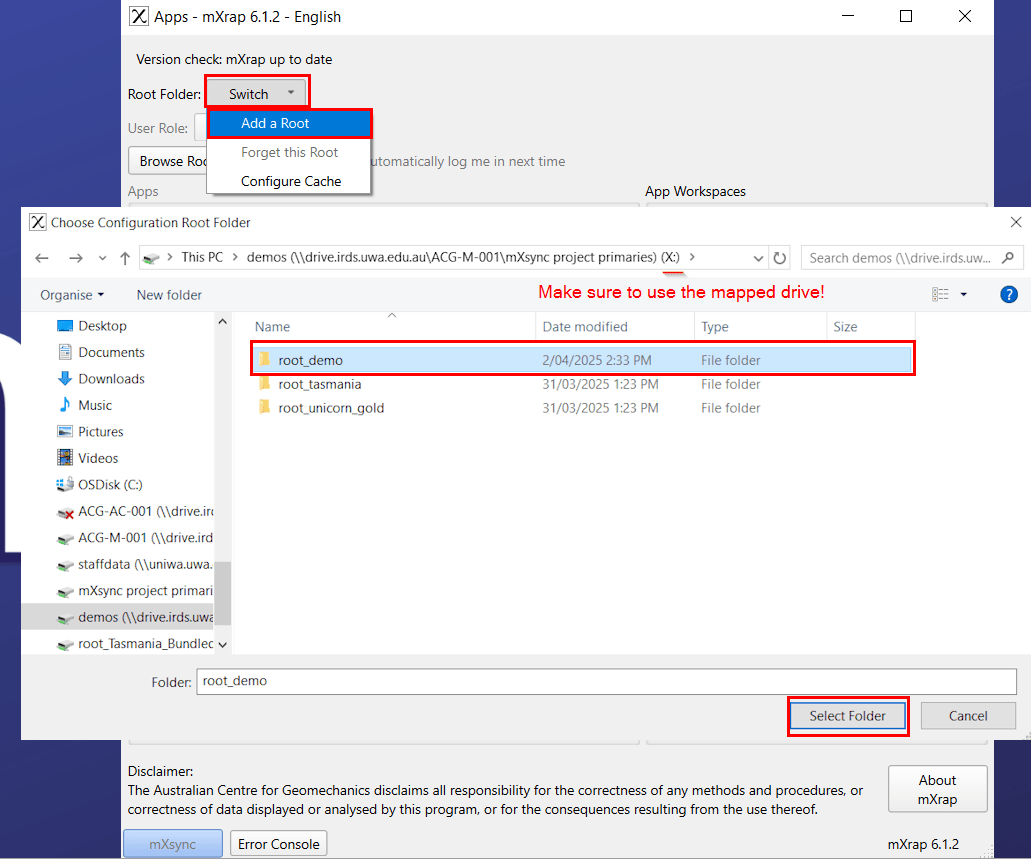
Add_Root_mXrap -
Repeat if you have multiple roots