Batch level creation
If your levels are stored in separate surveys and do not require clipping, then the batch level creation window can be used to easily create new levels for each of your survey files.
Start by ticking all of the survey files that you want to create levels for. If you tick a folder, then all of the survey files in that folder will be included. You will see a list of levels on the right, each corresponding to one of the included surveys. You can untick levels on the right if there are any that you do not want to create. When you are ready, click the Add All Levels button.
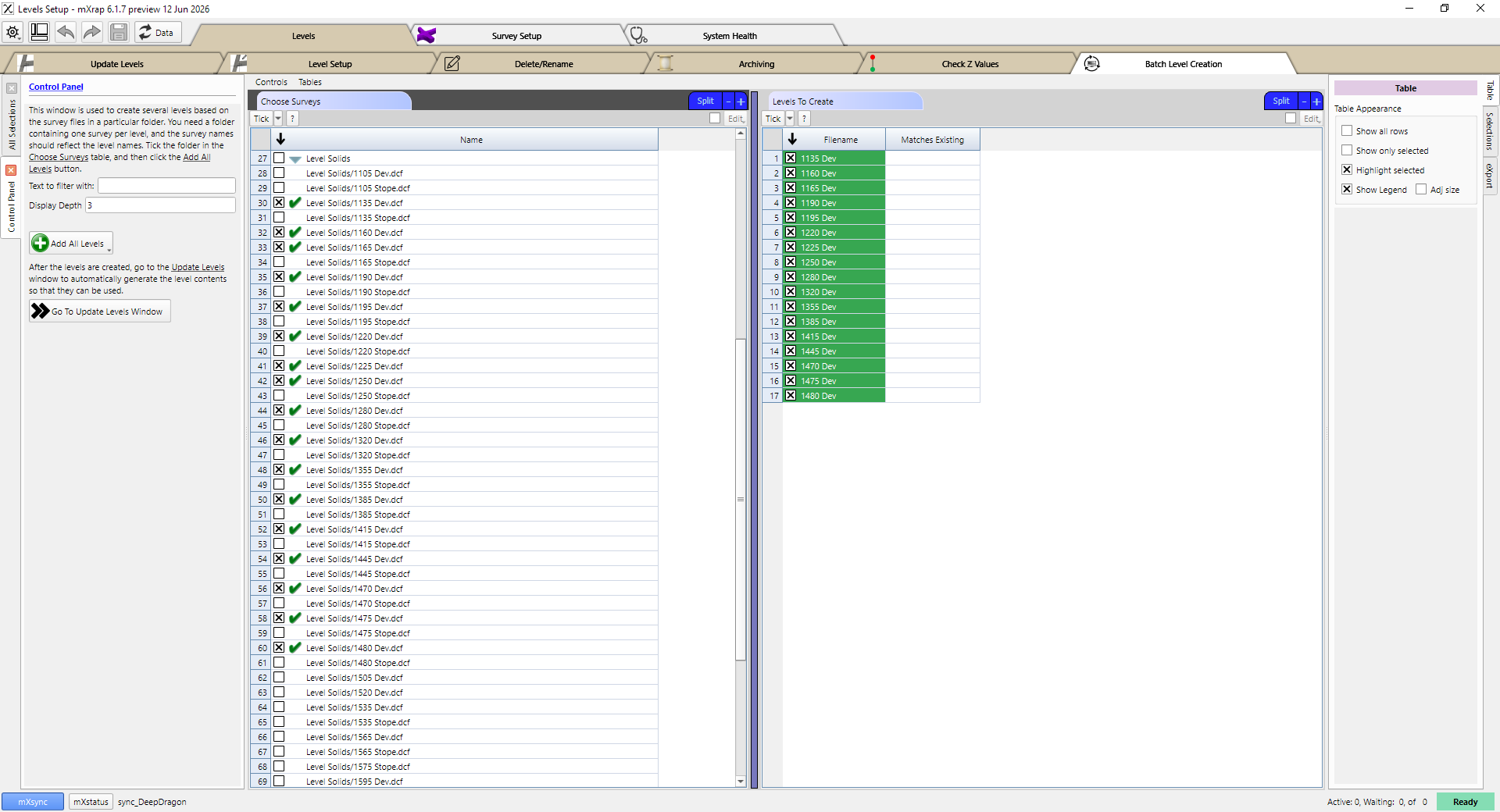
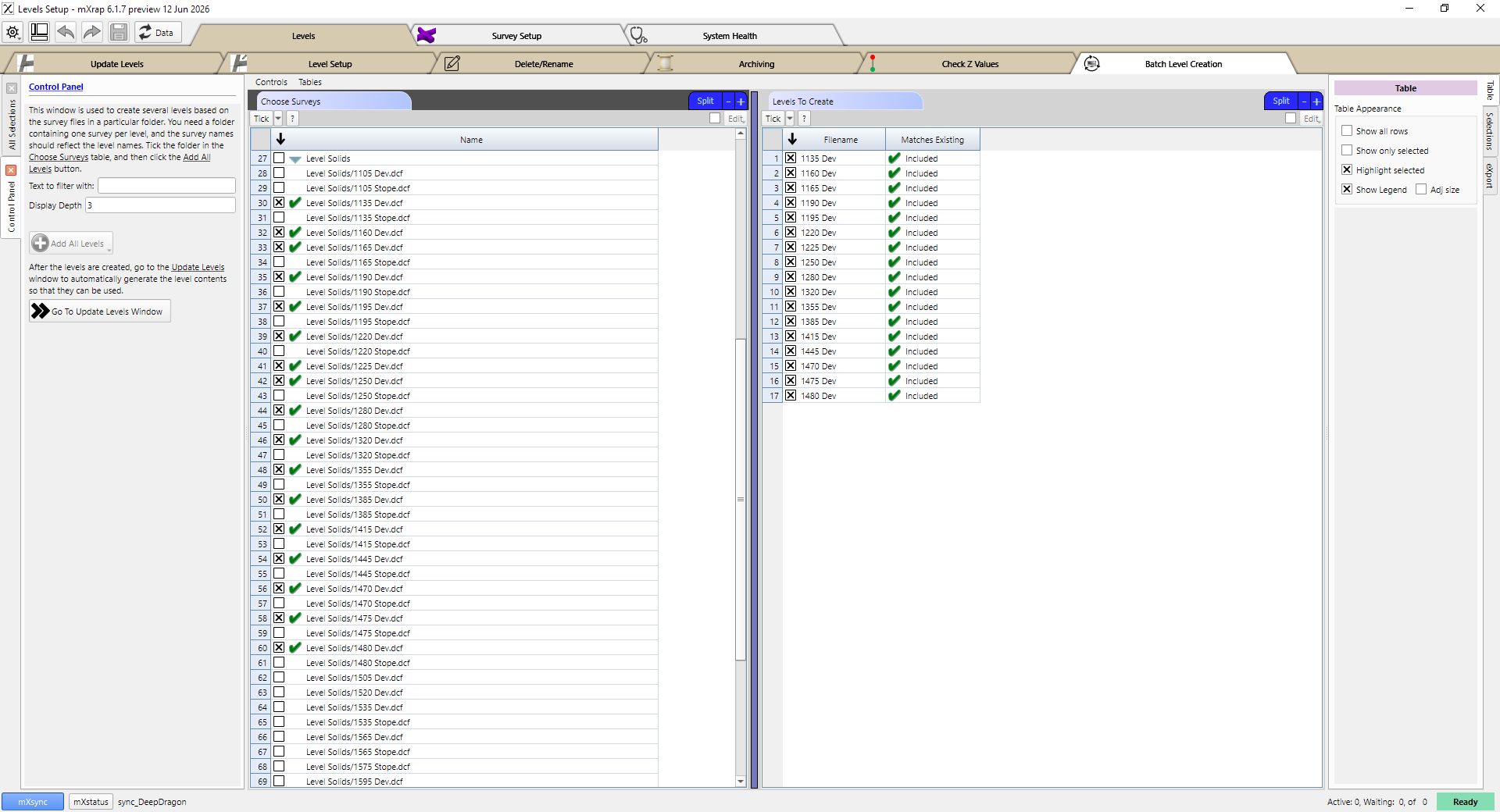
This will add levels to the database, and associate each survey name with its created level. You should see the Matches Existing column update to indicate that these level names exist in the database. At this point the survey names are associated with the levels, but the survey contents have not yet been saved into the levels database, so the levels are not ready for use with the inspections webforms. We can do that now by using the automatic update system.
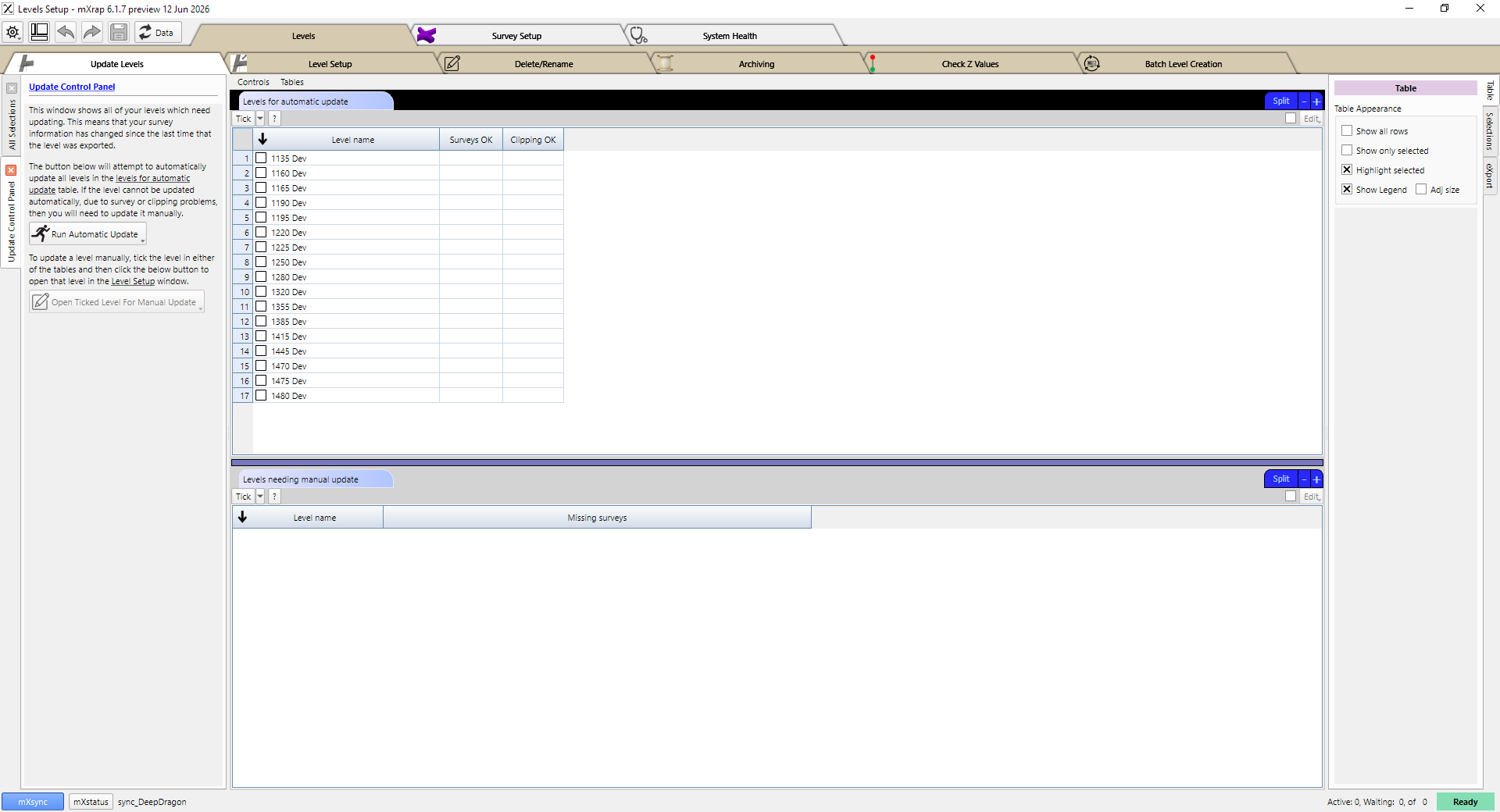
Click on the Go To Update Levels Window button to go to the Update Levels window. You should see all of the newly created levels in the Levels for automatic update table. Click on the Run Automatic Update button to save the survey contents for all of those levels, as described in the Updating levels page, so that they can be used in the inspections webforms.