Blasts Editor
Modifying The Blast Record
When trying to add, delete or change blasts in mXrap, best practice is to use the 'Blasts Editor' found under the 'General Set-Up Windows' tab
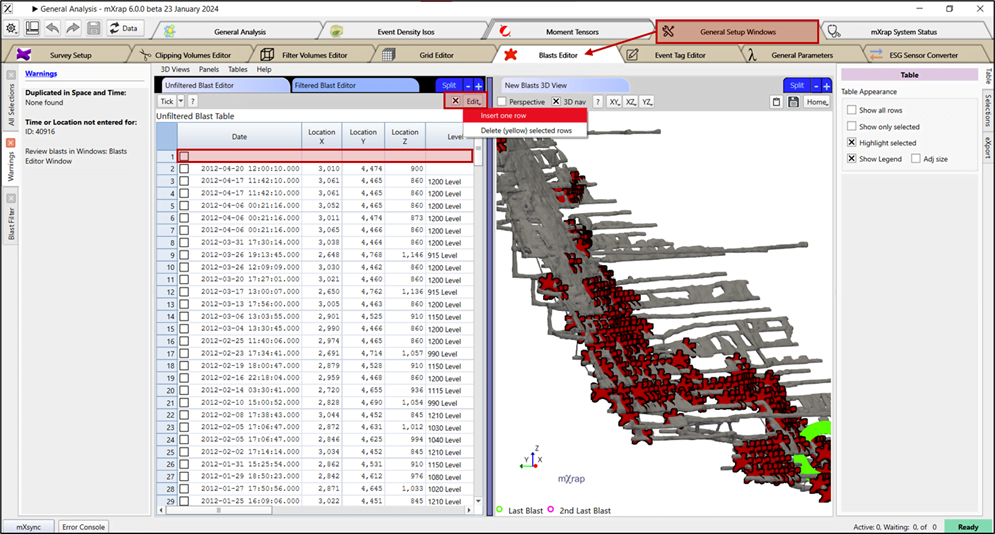
If you need to make bulk changes however, it may be tempting to directly alter the input file in the root folder.
Problem
When you open the 'Blasts.csv' in MS Excel, it automatically changes the date format and mXrap is no longer able to read the blast information
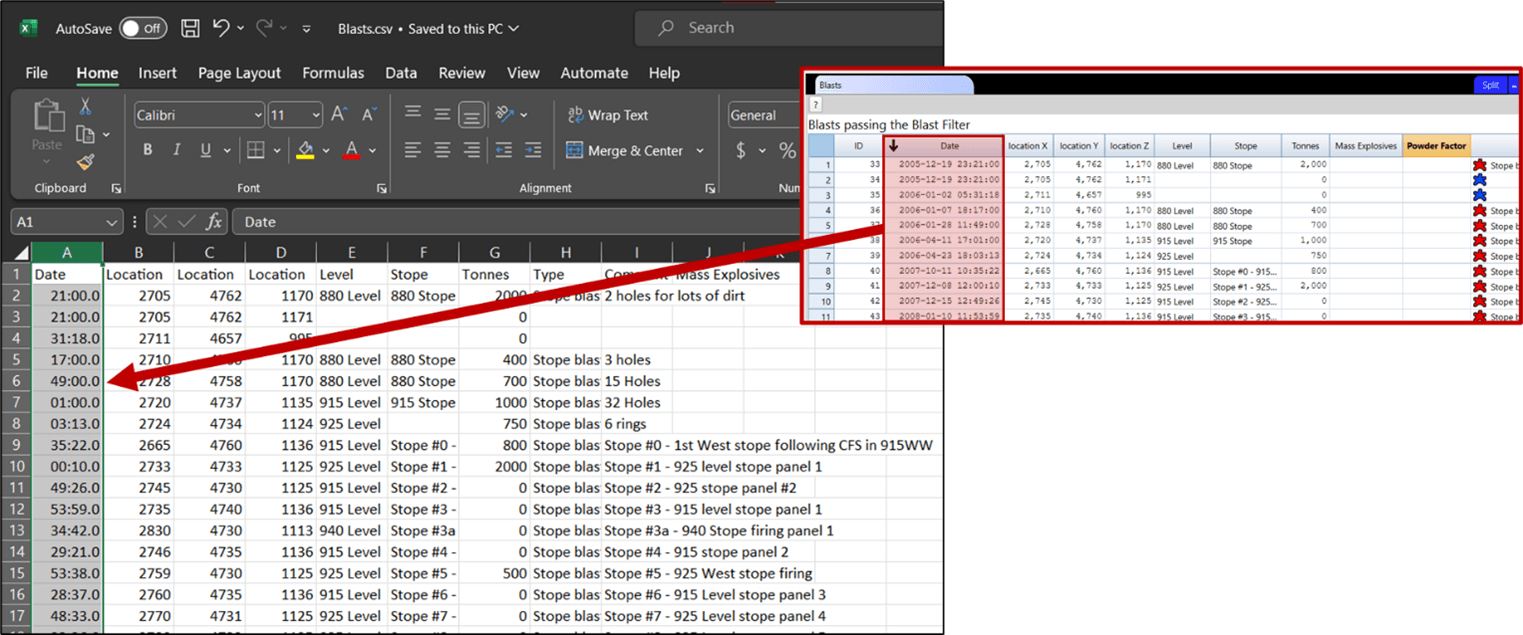
Solution
Prior to saving the new file, format the Date column to match the input required for your root: yyyy-mm-dd hh:mm:ss.0
This is the typical input format, but you may have to modify slightly in order to match the format for your specific root.
This can be done by selecting the Date column, right clicking, and opening 'Format Cells'. Choose the 'Custom' category, and manually enter the input format for your root
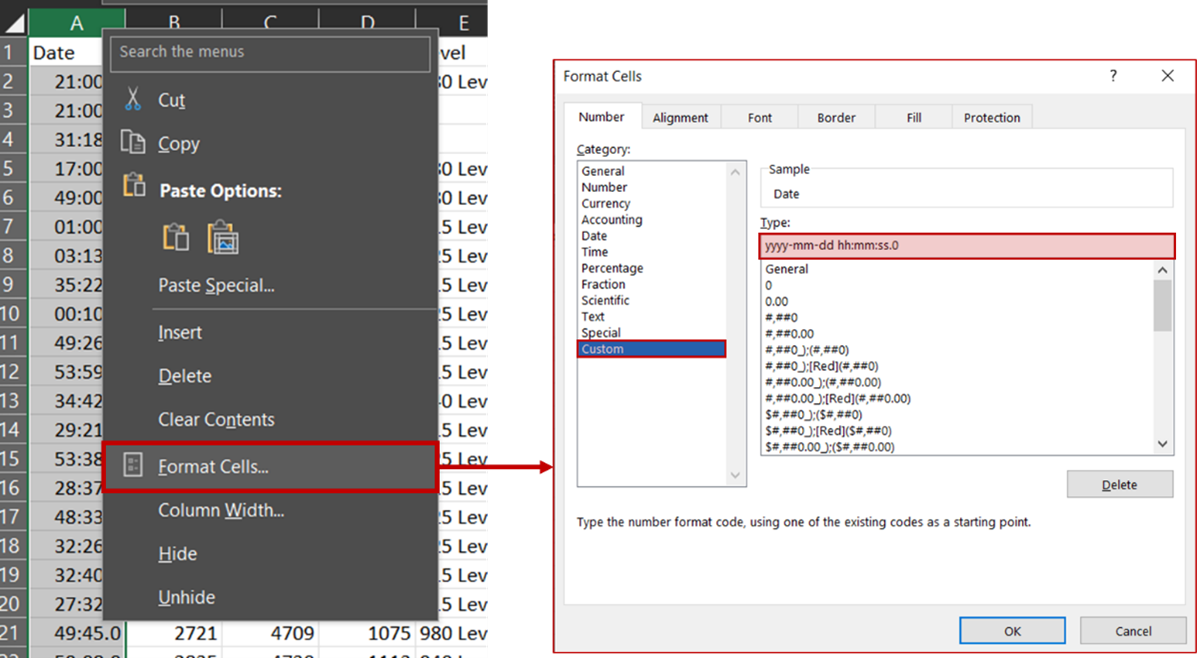
To see your changes, save the file and 'Reload Data' in mXrap.

Options available to Rescue or Recover Your Data
mXsync
You can use mXsync to restore past versions of your files. This works well if you have a backup of what you want to recover.
Autobackups
If you edit a file from within mXrap, there is usually a backup made in the Autobackups folder. You can manually go to the root folder, then the "Autobackups" subfolder. The files are named with a timestamp of when they were overwritten, and the folders and filename of where the file lived. You can copy and rename that file back to where it originally came from, and then hit "Reload Data". This works well for all sorts of files, but it can be hard to manually do the restore yourself. This does not work if you edit the files outside of mXrap, eg with MS Excel.
The Rescue App
Use this app to restore the automatic backups. This app automatically makes a backup of your Blasts file when a change is detected. It does not require an mXsync backup, and the app gives you a list of the backups and a button to Restore.
How to Restore with this App:
- Switch to the "Blast.csv Rescue" window.
- Tick the checkbox next to the version you would like to restore.
- Check the content in "Selected Backup" to check it is the version you want to restore.
- Click the button: "Restore This Backup"
- Click "Reload Data" in any other Windows and Apps to see the recovered data.